
Our Meta configuration has been designed to provide you with optimized and secure access to your Meta ad accounts.
Our Meta configuration has been designed to provide you with optimized and secure access to your Meta ad accounts.
Onboarding
Onboarding
However, to use this configuration smoothly and securely, you need AdsPower.
However, to use this configuration smoothly and securely, you need AdsPower.
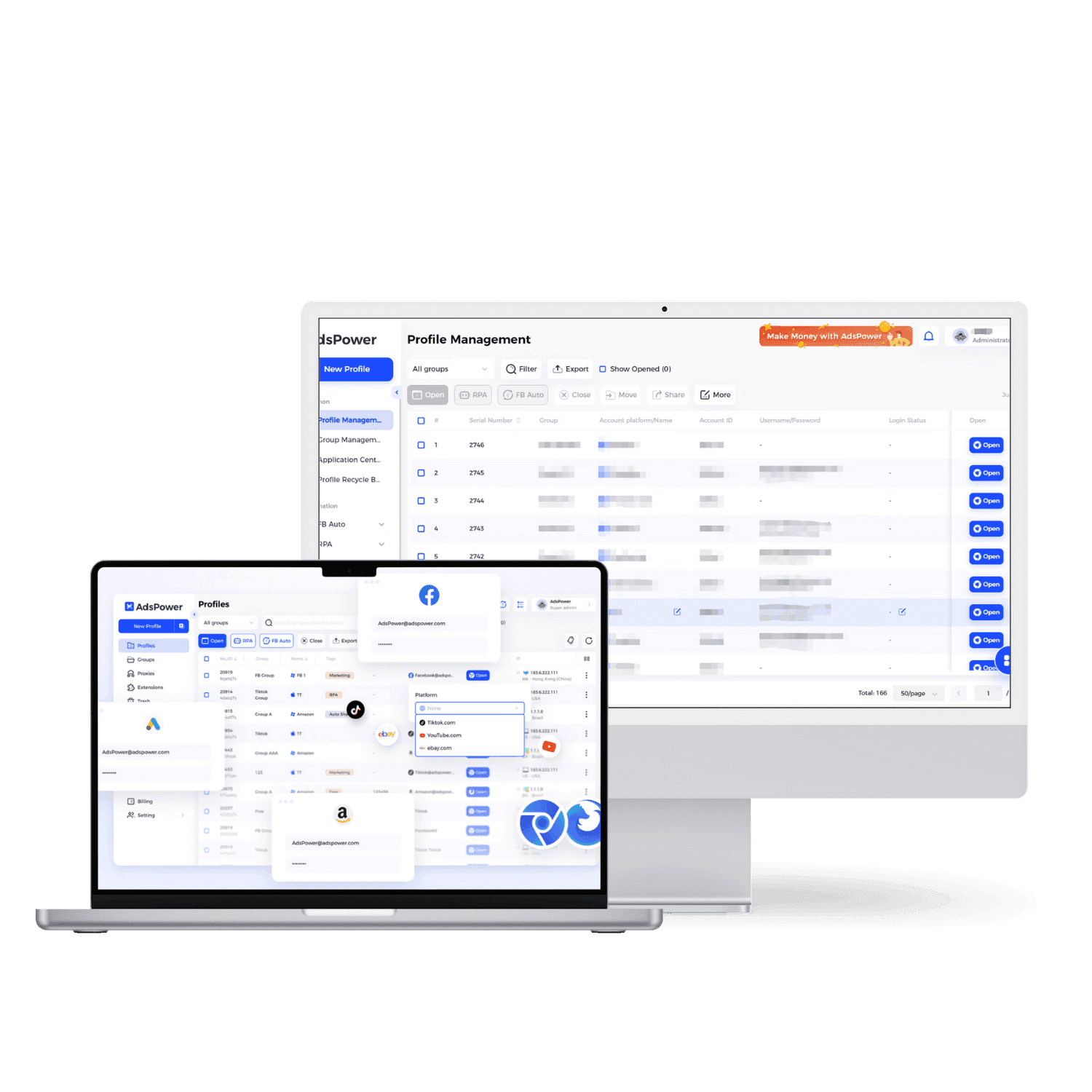
What is the role of AdsPower?
✅ Facilitates access to your Set-Up while ensuring a secure
connection.
✅ Isolates each ad account to prevent Meta restrictions.
✅ Simulates a reliable environment to avoid alerts and blocks.
✅ Manages multiple accounts easily without risk of detection.
What is the role of AdsPower?
✅ Facilitates access to your Set-Up while ensuring a secure connection.
✅ Isolates each ad account to prevent Meta restrictions.
✅ Simulates a reliable environment to avoid alerts and blocks.
✅ Manages multiple accounts easily without risk of detection.
How to access your Meta configuration via AdsPower?
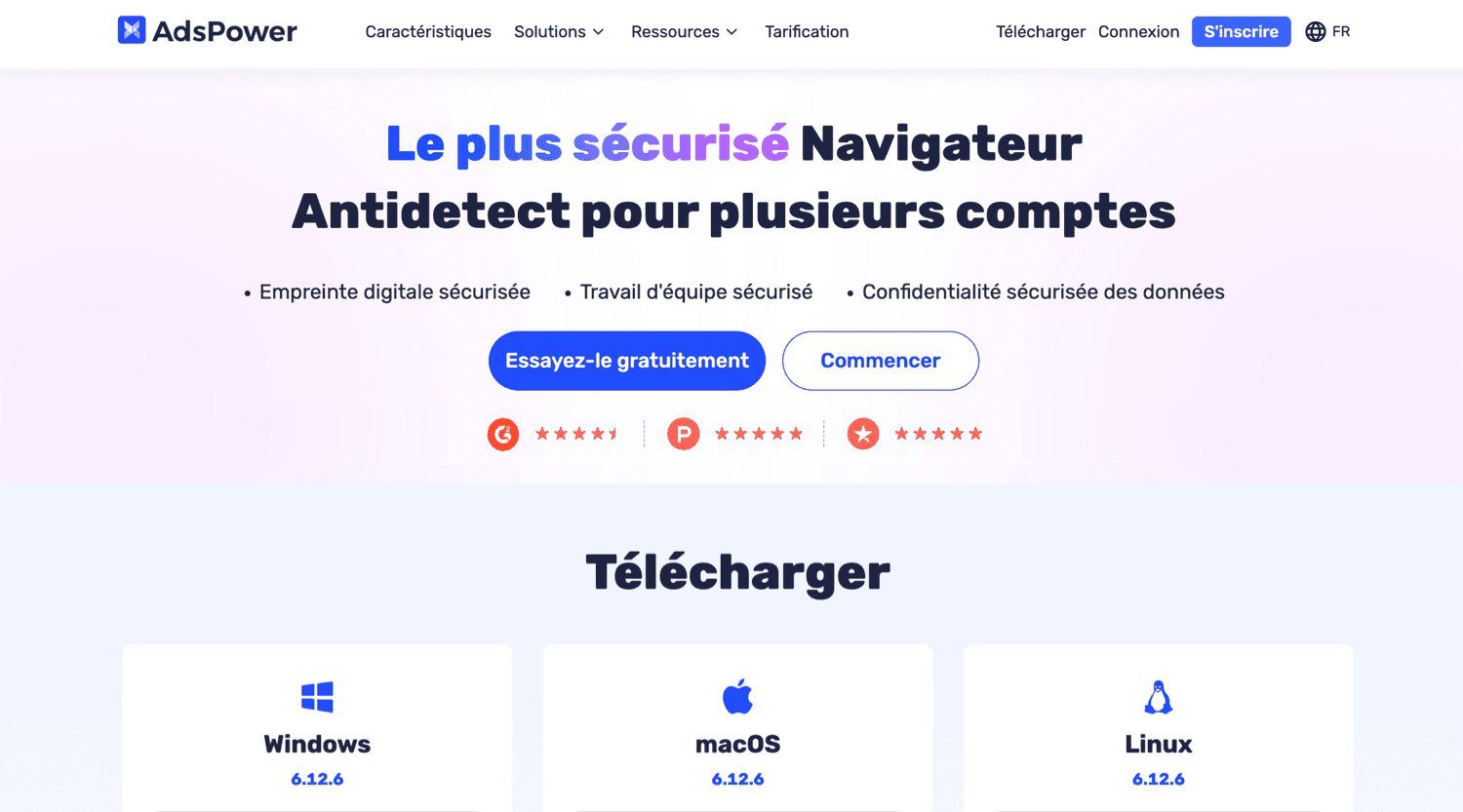
Step 1
AdsPower Installation
1. Go to adspower.com 2. Download the version compatible with your computer (Windows or Mac). 3. Install the software and then open it.
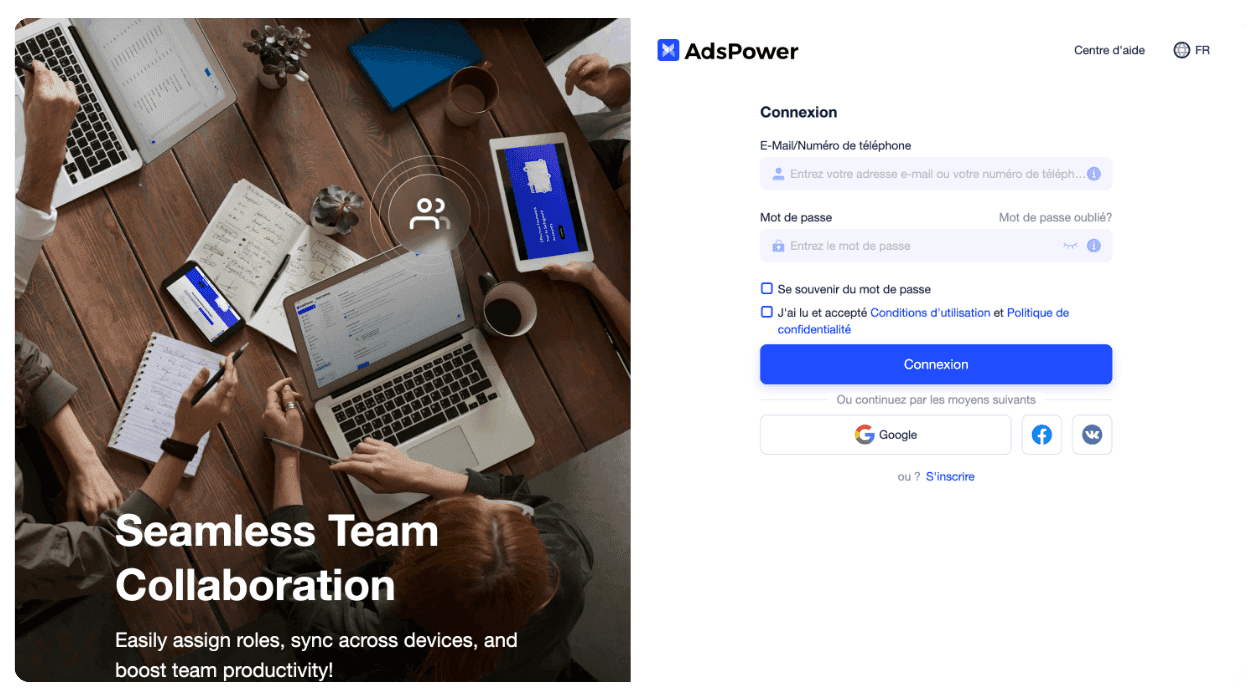
Step 2
Login to your AdsPower account
1. Launch AdsPower on your computer. 2. Enter the credentials provided by our team (Username & Password). 3. Click on "Log in" to access your dashboard.
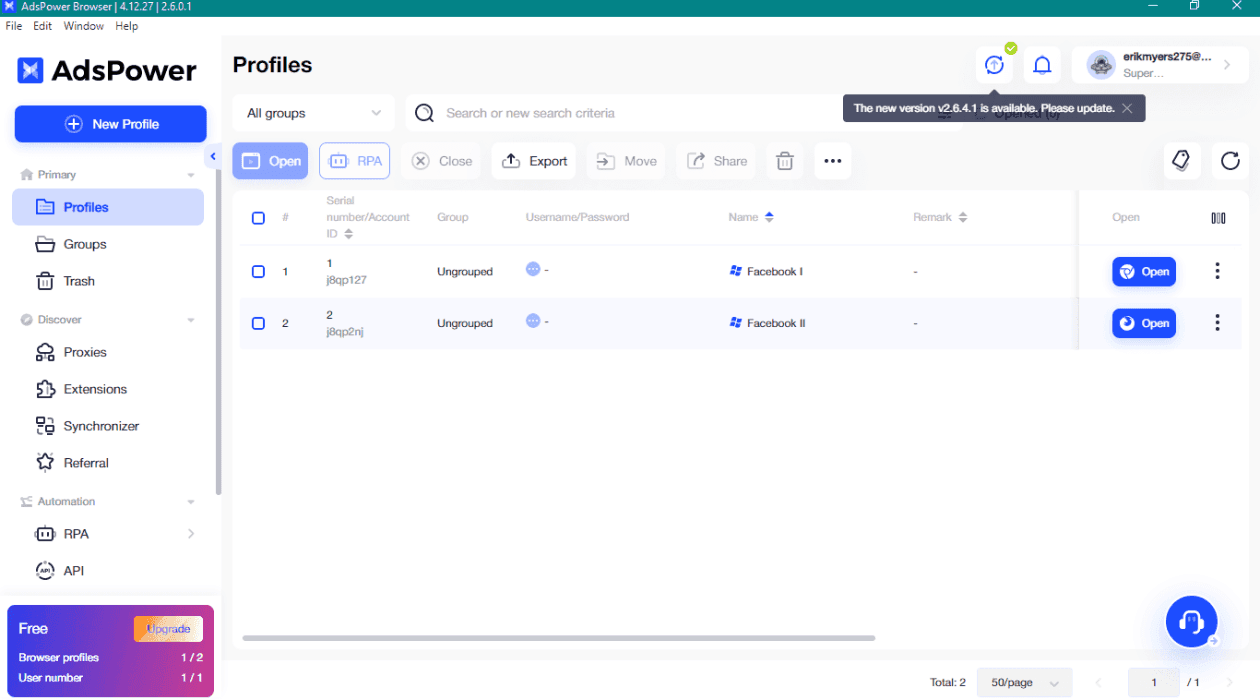
Step 3
Access your Meta configuration on AdsPower
1. In AdsPower, locate the list of profiles assigned to you. 2. Click on the "Edit" icon in the Remark column to view the profile details. 3. Note the login credentials that have been provided to you.
Step 4
Secure Login to Your Facebook Account
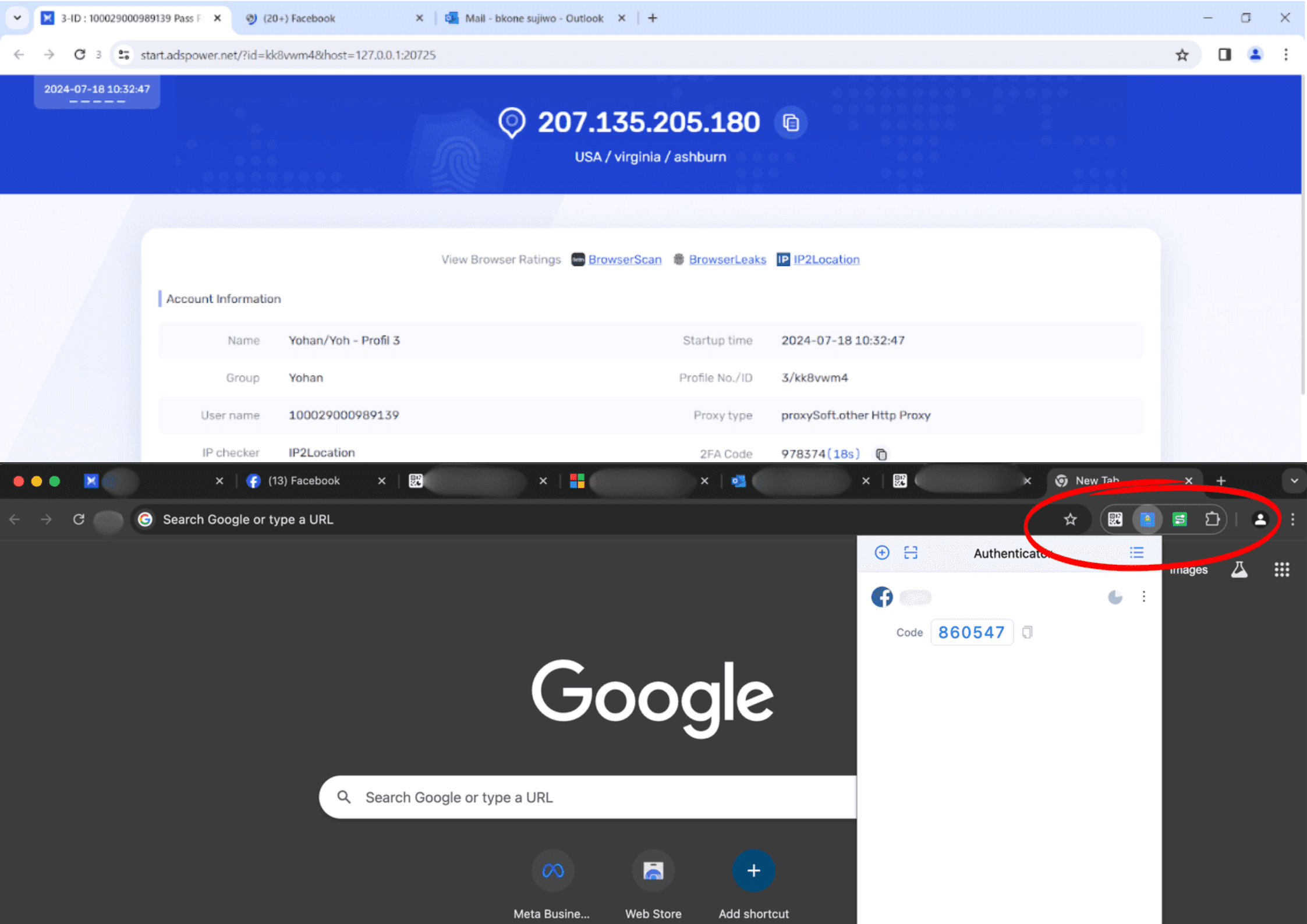
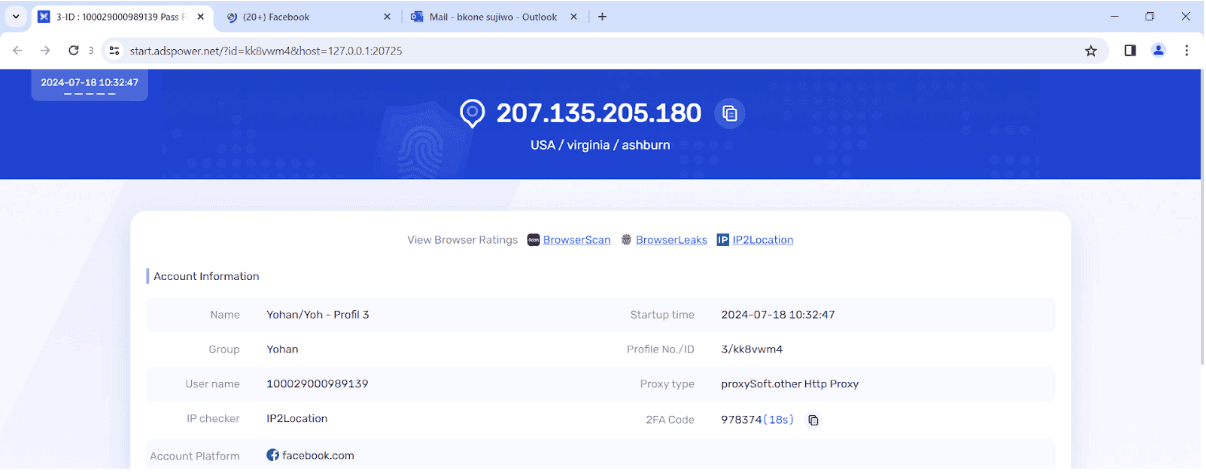
Retrieve your 2FA code for Meta To access your Facebook account via AdsPower: open AdsPower and launch your assigned session. Option 1 — URL Method: open a new tab in AdsPower and visit: 👉 https://start.adspower.net/?id=kk8vwm4&host=127.0.0.1:20725 Option 2 — Browser Method: on the first page of the AdsPower browser, look at the top right: "2FA Code". Copy the code and use it to log in to Facebook.
Step 5
Install the essential extensions
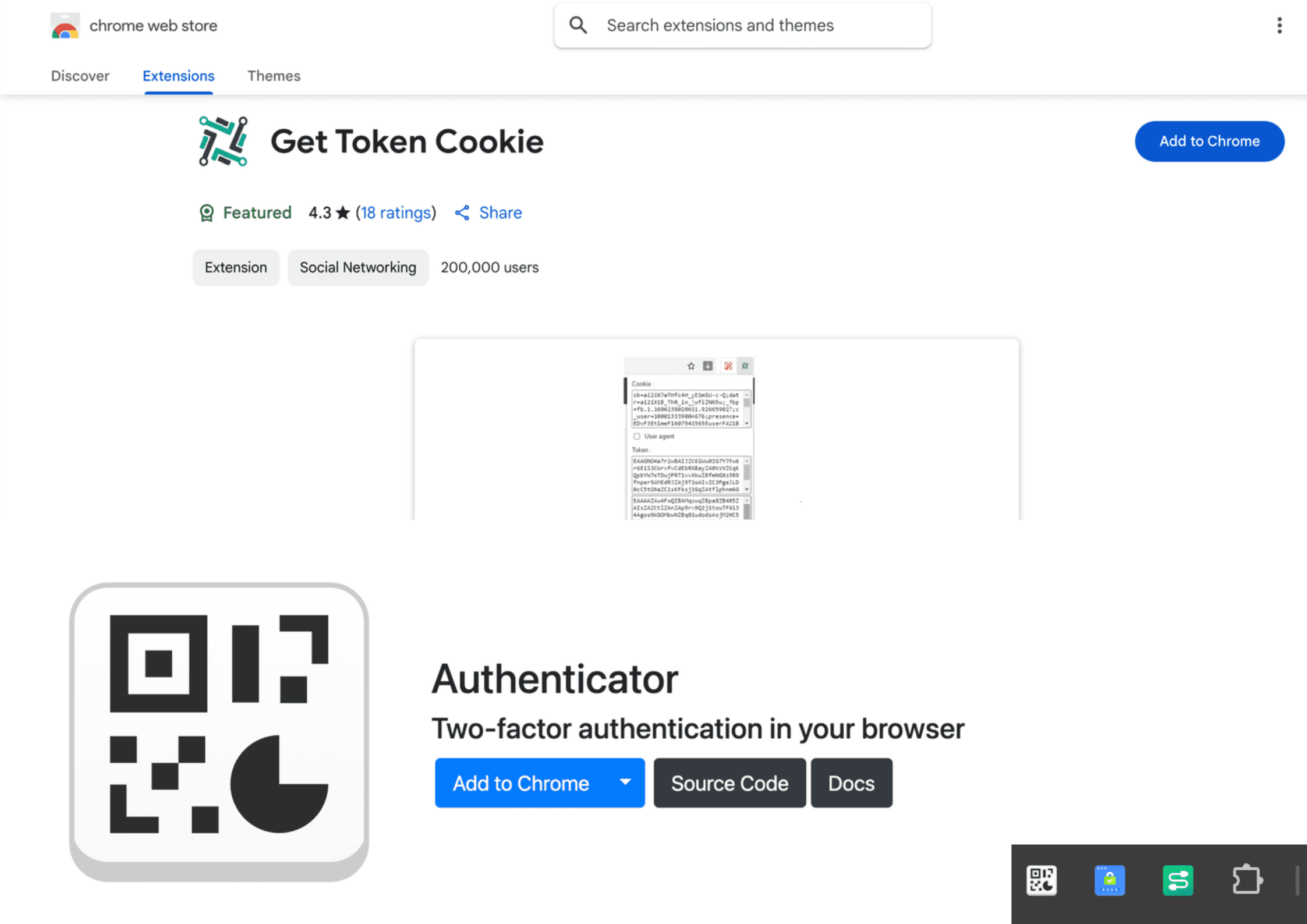
For a smoother and more secure connection to your Meta Ads account, install these two extensions: ✅ "Get Token Cookie": allows you to copy/paste cookies and log in with 2 clicks. ✅ "Authenticator": generates a 2FA code every 30 seconds to 1 minute to enhance security.
Step 6
Manage your advertising campaigns
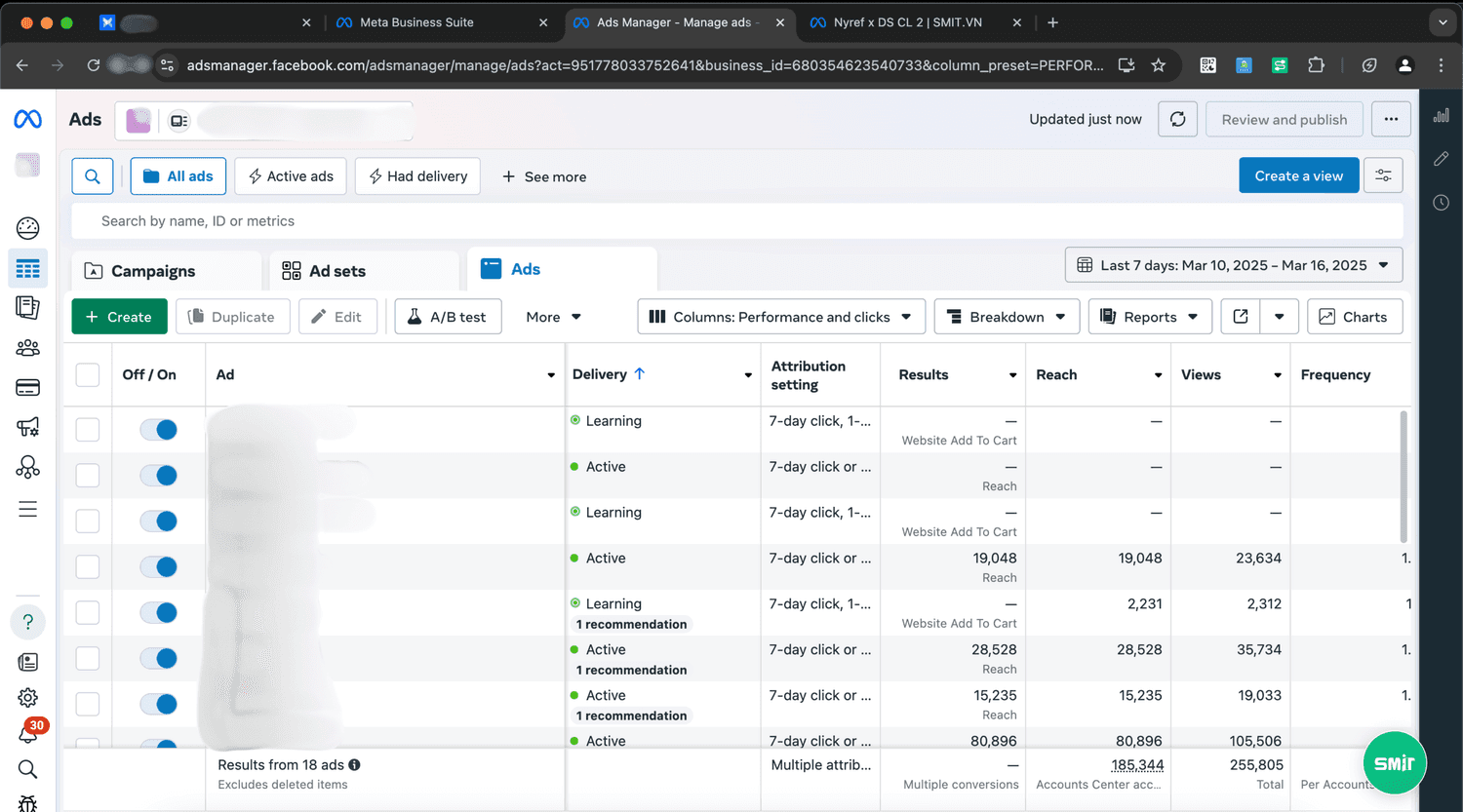
1. Access your Facebook account through AdsPower. 2. Open the Meta Business Manager to manage your advertising campaigns. 3. Check that everything is working correctly (login, access to advertising accounts, security enabled). Launch your campaigns with confidence! 🚀
Step 7
Important information for each account
UID: Facebook ID Password fb: Facebook password 2FA: two-factor authentication code Hotmail: email address of the account MDP: email password COOKIES: quick login via "Get Token Cookie"
How to access your Meta configuration via AdsPower?
Step 1
AdsPower Installation
1. Go to adspower.com 2. Download the version compatible with your computer (Windows or Mac). 3. Install the software and then open it.
Step 2
Login to your AdsPower account
1. Launch AdsPower on your computer. 2. Enter the credentials provided by our team (Username & Password). 3. Click on "Log in" to access your dashboard.
Step 3
Access your Meta configuration on AdsPower
1. In AdsPower, locate the list of profiles assigned to you. 2. Click on the "Edit" icon in the Remark column to view the profile details. 3. Note the login credentials that have been provided to you.
Step 4
Secure Login to Your Facebook Account
Retrieve your 2FA code for Meta To access your Facebook account via AdsPower: open AdsPower and launch your assigned session. Option 1 — URL Method: open a new tab in AdsPower and visit: 👉 https://start.adspower.net/?id=kk8vwm4&host=127.0.0.1:20725 Option 2 — Browser Method: on the first page of the AdsPower browser, look at the top right: "2FA Code". Copy the code and use it to log in to Facebook.
Step 5
Install the essential extensions
For a smoother and more secure connection to your Meta Ads account, install these two extensions: ✅ "Get Token Cookie": allows you to copy/paste cookies and log in with 2 clicks. ✅ "Authenticator": generates a 2FA code every 30 seconds to 1 minute to enhance security.
Step 6
Manage your advertising campaigns
1. Access your Facebook account through AdsPower. 2. Open the Meta Business Manager to manage your advertising campaigns. 3. Check that everything is working correctly (login, access to advertising accounts, security enabled). Launch your campaigns with confidence! 🚀
Step 7
Important information for each account
UID: Facebook ID Password fb: Facebook password 2FA: two-factor authentication code Hotmail: email address of the account MDP: email password COOKIES: quick login via "Get Token Cookie"
How to access your Meta configuration via AdsPower?
Step 1
AdsPower Installation
1. Go to adspower.com 2. Download the version compatible with your computer (Windows or Mac). 3. Install the software and then open it.
Step 2
Login to your AdsPower account
1. Launch AdsPower on your computer. 2. Enter the credentials provided by our team (Username & Password). 3. Click on "Log in" to access your dashboard.
Step 3
Access your Meta configuration on AdsPower
1. In AdsPower, locate the list of profiles assigned to you. 2. Click on the "Edit" icon in the Remark column to view the profile details. 3. Note the login credentials that have been provided to you.
Step 4
Secure Login to Your Facebook Account
Retrieve your 2FA code for Meta To access your Facebook account via AdsPower: open AdsPower and launch your assigned session. Option 1 — URL Method: open a new tab in AdsPower and visit: 👉 https://start.adspower.net/?id=kk8vwm4&host=127.0.0.1:20725 Option 2 — Browser Method: on the first page of the AdsPower browser, look at the top right: "2FA Code". Copy the code and use it to log in to Facebook.
Step 5
Install the essential extensions
For a smoother and more secure connection to your Meta Ads account, install these two extensions: ✅ "Get Token Cookie": allows you to copy/paste cookies and log in with 2 clicks. ✅ "Authenticator": generates a 2FA code every 30 seconds to 1 minute to enhance security.
Step 6
Manage your advertising campaigns
1. Access your Facebook account through AdsPower. 2. Open the Meta Business Manager to manage your advertising campaigns. 3. Check that everything is working correctly (login, access to advertising accounts, security enabled). Launch your campaigns with confidence! 🚀
Step 7
Important information for each account
UID: Facebook ID Password fb: Facebook password 2FA: two-factor authentication code Hotmail: email address of the account MDP: email password COOKIES: quick login via "Get Token Cookie"

Ready to scale without blockages?
Q4 is coming.
Do you want to scale or watch others scale?
Advertising accounts ready to perform, stable, and with no daily spending limits. Setup completed in just a few hours.


Ready to scale without blockages?
Q4 is coming.
Do you want to scale or watch others scale?
Advertising accounts ready to perform, stable, and with no daily spending limits. Setup completed in just a few hours.